Comment créer un menu en ligne pour son restaurant avec MenuMate
- Écrit par
- Ala Baganne
- Publié le
- 10 mai 2026
- Temps de lecture
- 8 min
- Catégorie
- Guides
Un guide étape par étape pour créer un menu en ligne avec QR code grâce à MenuMate. Vos clients consultent vos plats sur leur téléphone, sans application.
Si vous tenez un restaurant, un café, un food truck ou un petit commerce de restauration, votre menu joue un rôle essentiel dans l'expérience client. Pourtant, une carte imprimée coûte cher à mettre à jour, s'abîme facilement et devient vite dépassée lorsque les prix ou les ingrédients changent.
C'est là que MenuMate peut vous aider.
MenuMate vous permet de créer un menu en ligne clair et adapté aux téléphones. Les clients y accèdent en scannant un QR code. Aucune application à télécharger, aucune configuration compliquée : il suffit de scanner, de consulter et de commander.
Dans ce guide, je vous explique étape par étape comment créer votre menu en ligne avec MenuMate.
Qu'est-ce que MenuMate ?
MenuMate est une plateforme de menu digital et de gestion pour les restaurants. Elle vous permet de :
- Créer un menu en ligne pour votre établissement.
- Ajouter des catégories, des plats, des prix, des descriptions et des photos.
- Générer un QR code que les clients scannent à table.
- Modifier votre menu immédiatement, sans réimpression.
- Recevoir des commandes associées à chaque table.
- Afficher les prix dans votre devise, avec les boutons du menu en français ou en anglais.
- Exporter une version PDF imprimable du menu.
- Tout gérer depuis un tableau de bord.
L'objectif est simple : remplacer une carte papier figée par un menu en ligne plus facile à gérer et à consulter.
Pourquoi créer un menu en ligne ?
Un menu digital peut vous faire gagner du temps, réduire les frais d'impression et simplifier la commande.
Voici quelques avantages concrets :
1. Modifiez votre menu à tout moment
Un prix a changé ? Un plat est épuisé ? Vous ajoutez une spécialité de saison ?
Avec une carte imprimée, vous devez attendre le prochain tirage ou expliquer le changement à chaque client. Avec MenuMate, une seule modification suffit pour mettre le menu en ligne à jour.
2. Les clients scannent et consultent immédiatement
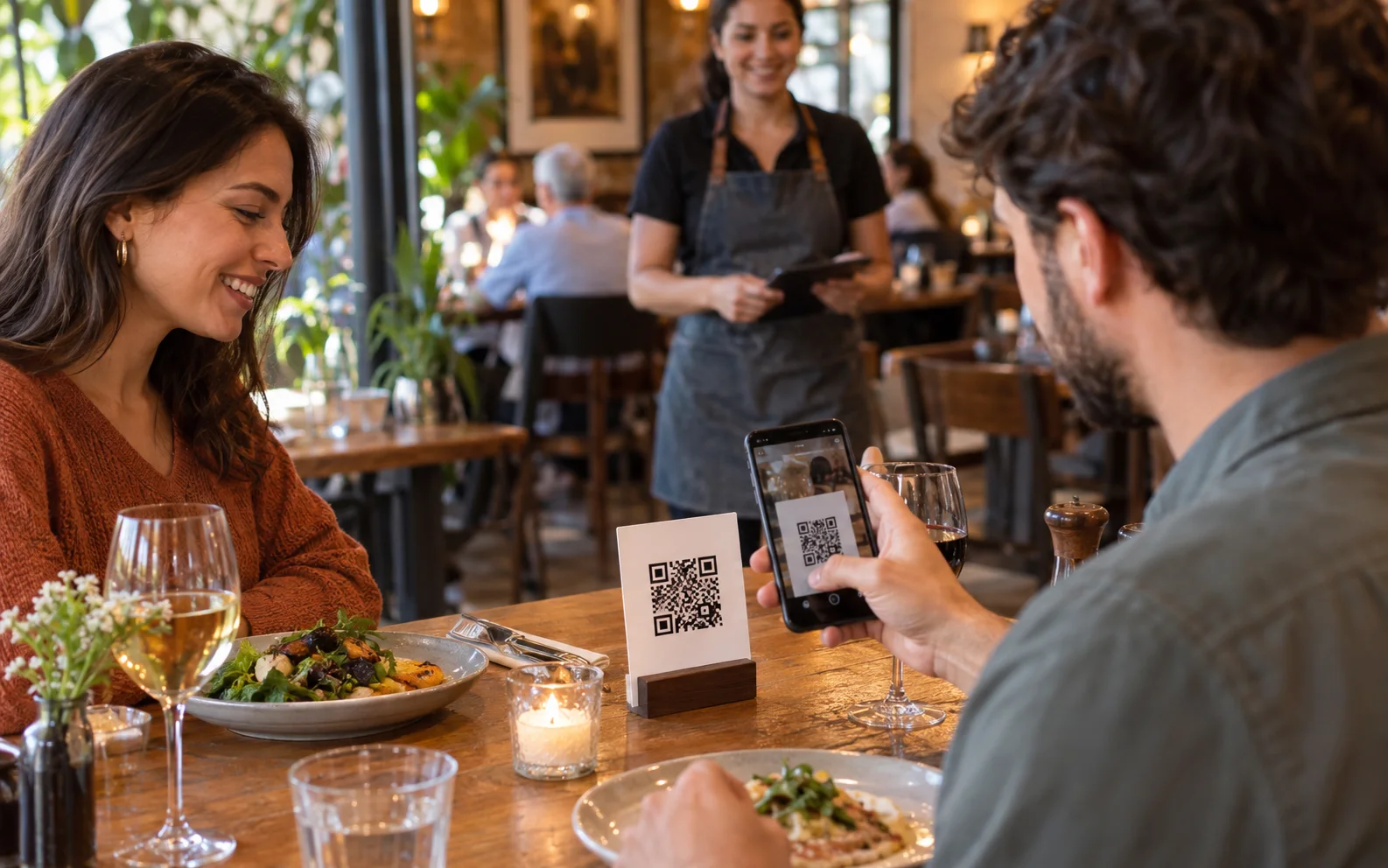
Les clients scannent un QR code avec leur téléphone et ouvrent le menu dans leur navigateur. Ils n'ont pas besoin d'installer une application ou de créer un compte pour voir vos plats.
3. Présentez mieux vos plats
Ajoutez des photos, des descriptions et des catégories dans une présentation agréable sur téléphone. Les clients comprennent plus vite ce que vous proposez, et votre menu paraît plus soigné.
4. Réduisez les frais d'impression
Les restaurants réimpriment souvent leurs cartes à cause des changements de prix, des nouveaux plats, de l'usure ou des saisons. Un menu en ligne réduit fortement ce besoin.
5. Simplifiez les commandes à table
MenuMate peut recevoir les commandes associées à chaque table. Les clients commandent depuis leur téléphone et l'équipe suit les commandes dans le tableau de bord.
Comment créer un menu en ligne avec MenuMate
Voici les étapes à suivre.
Étape 1 : créez le profil de votre établissement
Commencez par ajouter votre restaurant dans MenuMate. Renseignez les informations qui permettent aux clients de le reconnaître :
- Nom de l'établissement.
- Logo ou image de marque.
- Adresse ou coordonnées.
- Devise.
- Description du restaurant.
Ces éléments forment la base de votre page de menu publique.
Étape 2 : ajoutez les catégories de votre menu
Organisez ensuite vos produits en catégories simples, par exemple :
- Entrées.
- Plats principaux.
- Burgers.
- Pizzas.
- Desserts.
- Boissons.
- Suggestions.
Des catégories claires facilitent la navigation, surtout sur un petit écran.
Étape 3 : ajoutez vos plats et produits
Pour chaque plat ou produit, indiquez les informations utiles aux clients :
- Nom.
- Prix.
- Description.
- Photo.
- Catégorie.
- Disponibilité.
Une description courte et précise aide les clients à choisir. Au lieu d'écrire seulement « Sandwich au poulet », vous pourriez écrire :
Blanc de poulet grillé, sauce à l'ail, laitue, tomate et fromage fondu dans un pain toasté.
Cette description donne davantage envie et évite des questions à votre équipe.
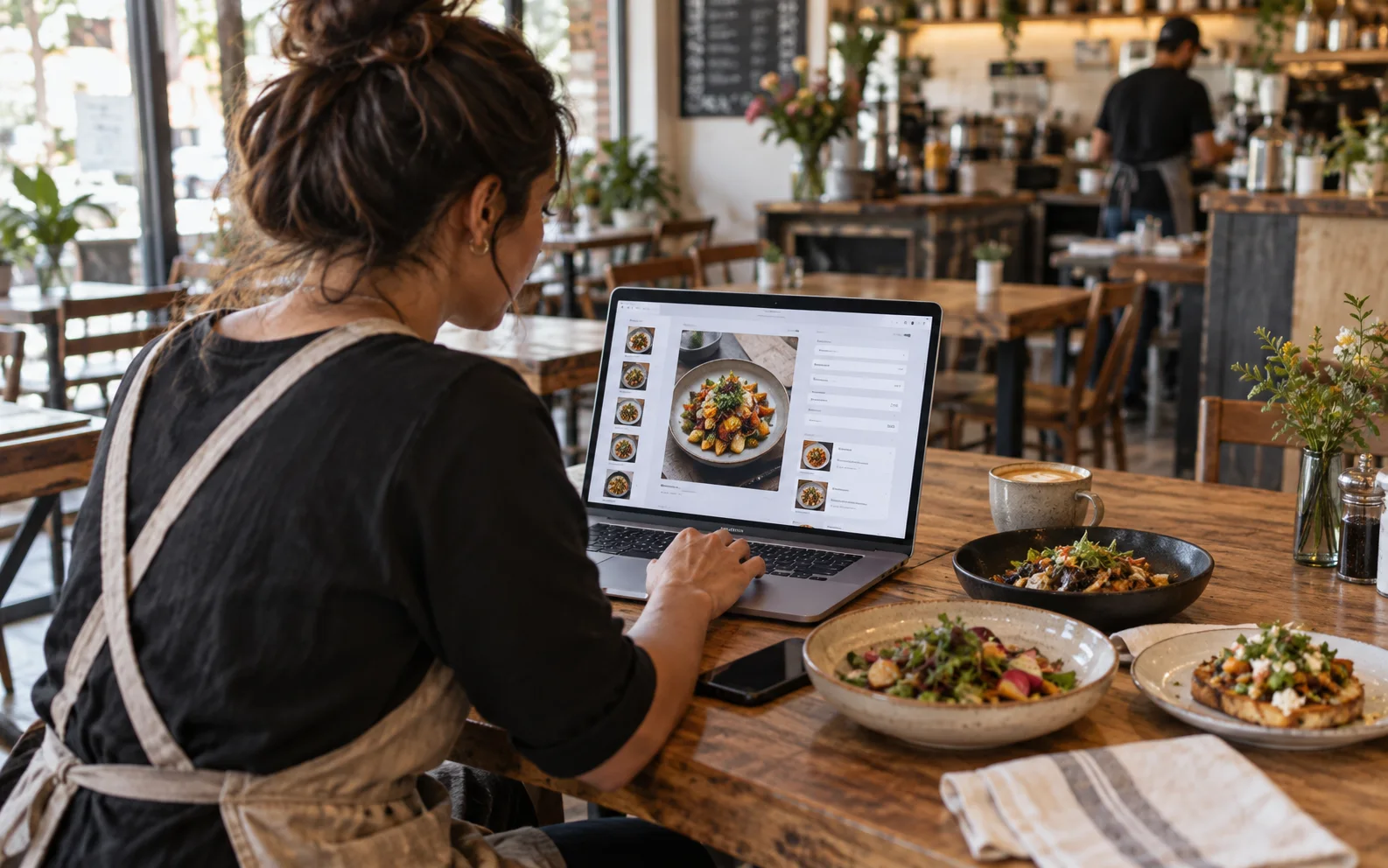
Étape 4 : ajoutez de bonnes photos
Les photos aident les clients à se représenter vos plats.
Vous n'avez pas besoin d'une séance photo professionnelle pour commencer. Quelques règles simples suffisent :
- Utilisez la lumière naturelle si possible.
- Gardez un arrière-plan propre.
- Photographiez les plats sous un angle cohérent.
- Montrez la taille réelle des portions.
- Évitez les filtres qui déforment l'apparence des plats.
Des photos claires prises avec un téléphone valent mieux qu'aucune image, à condition de rester fidèles à ce que vous servez.
Étape 5 : personnalisez la présentation
Votre menu doit correspondre à votre restaurant. MenuMate propose une présentation adaptée aux ordinateurs et aux téléphones, avec des options pour personnaliser l'expérience des clients.
Privilégiez d'abord la clarté :
- Rendez les noms des plats faciles à lire.
- Gardez des descriptions courtes.
- Regroupez les produits similaires.
- Utilisez de bonnes photos pour vos meilleures ventes.
- Mettez en avant les plats populaires ou rentables.
Étape 6 : générez votre QR code
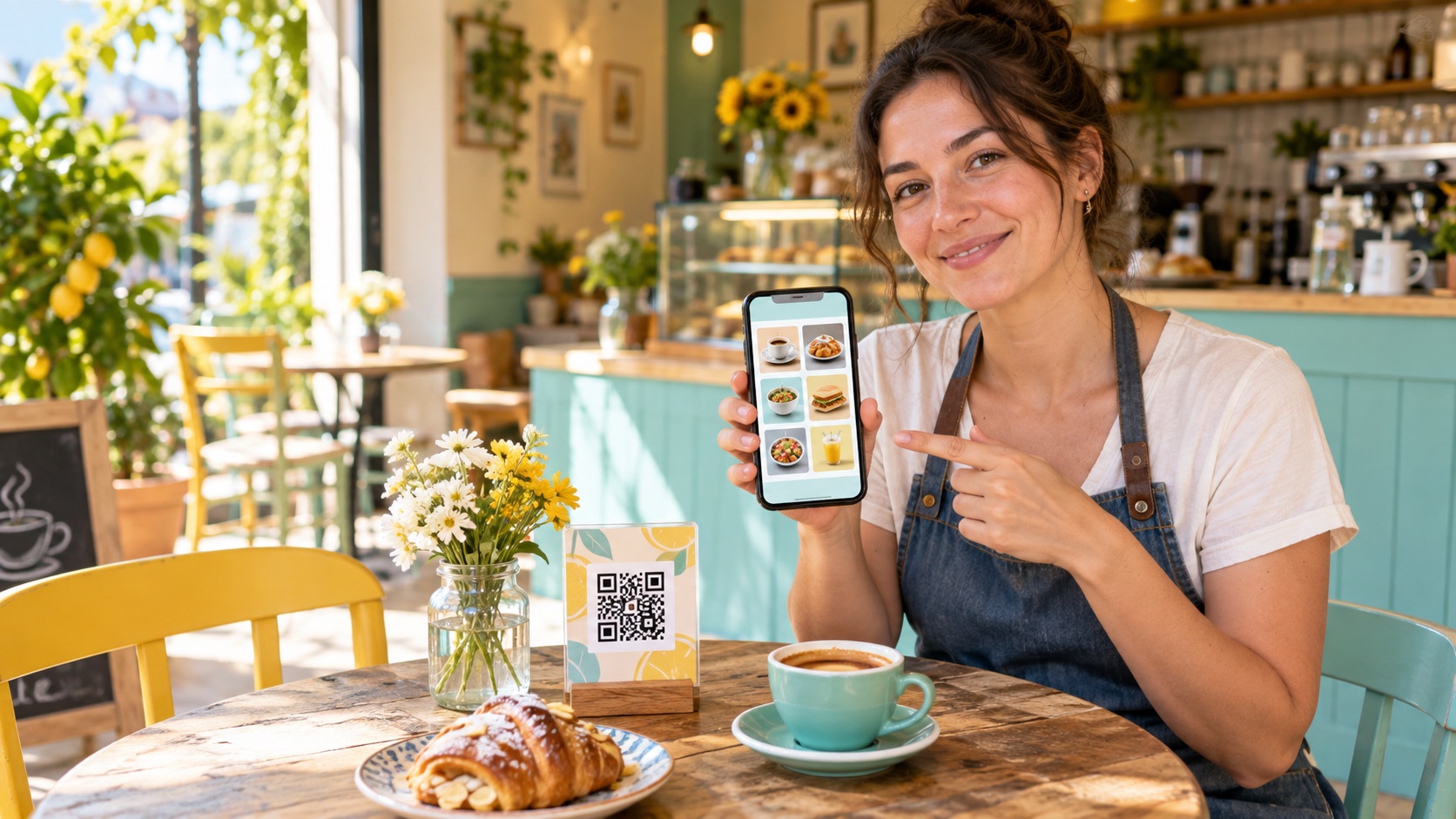
Une fois le menu prêt, MenuMate vous permet de générer un QR code pour y accéder.
Vous pouvez placer ce code sur :
- Les tables.
- Des affiches.
- Les reçus.
- Les emballages de vente à emporter.
- Les cartes de visite.
- Vos profils sur les réseaux sociaux.
- Votre site web.
Lorsqu'un client le scanne, il arrive directement sur votre menu en ligne.
Étape 7 : vérifiez le menu avant de le partager
Avant d'imprimer ou de diffuser le QR code, testez-le comme le ferait un client.
Ouvrez le menu sur votre téléphone et vérifiez :
- La page se charge-t-elle rapidement ?
- Les catégories sont-elles faciles à parcourir ?
- Les prix sont-ils corrects ?
- Les photos s'affichent-elles bien ?
- Les plats épuisés sont-ils masqués ou signalés ?
- Le parcours de commande est-il clair ?
Cinq minutes de vérification peuvent éviter des malentendus pendant le service.
Étape 8 : partagez votre menu partout
Après vérification, affichez le menu dans votre établissement et sur vos canaux en ligne.
Vous pouvez ajouter le lien à :
- Votre fiche d'établissement Google.
- Votre bio Instagram.
- Votre page Facebook.
- Votre site de restaurant.
- Vos réponses WhatsApp.
- Vos chevalets de table.
- Vos flyers.
- Vos emballages de livraison.
Plus votre menu est visible, plus il est facile pour les clients de choisir ce qu'ils commanderont.
Étape 9 : améliorez régulièrement votre menu
Un menu en ligne ne doit pas rester figé après sa création. Son avantage est de pouvoir évoluer.
Chaque semaine, posez-vous quelques questions :
- Des plats manquent-ils de photos ?
- Les descriptions sont-elles assez claires ?
- Les prix sont-ils à jour ?
- Les meilleures ventes sont-elles faciles à trouver ?
- Faut-il ajouter ou retirer des produits de saison ?
- Les clients posent-ils souvent les mêmes questions ?
De petits changements rendent le menu plus utile et peuvent soutenir les ventes.
Exemple : passer du papier au menu QR code
Imaginez que vous gérez un petit café.
Avant MenuMate, chaque changement de prix du café ou ajout de dessert vous obligeait à refaire et réimprimer la carte. Certains clients voyaient d'anciens prix, et l'équipe devait expliquer les changements pendant les heures chargées.
Avec MenuMate, vous modifiez le menu dans le tableau de bord, ajoutez une photo du nouveau dessert et gardez les mêmes QR codes sur les tables. Les clients voient aussitôt la version à jour.
C'est l'intérêt d'un menu en ligne : un seul QR code, toujours à jour.
Bonnes pratiques pour un menu en ligne
Pour tirer le meilleur parti de votre menu MenuMate :
- Choisissez des noms de catégories simples.
- Placez les plats populaires ou rentables en bonne position.
- Affichez des prix clairs, sans surprise.
- Décrivez brièvement les plats moins connus.
- Ajoutez des photos de vos spécialités.
- Masquez rapidement les produits indisponibles.
- Vérifiez que le QR code se scanne facilement.
- Testez le menu sur différents téléphones.
Pour conclure
Créer un menu en ligne n'a pas besoin d'être compliqué. Avec MenuMate, vous pouvez publier un menu digital, générer un QR code et permettre aux clients de découvrir vos plats sur leur téléphone.
Pour votre établissement, cela signifie moins de réimpressions, des changements plus rapides et une expérience client plus simple.
Pour les clients, un scan suffit pour accéder au menu.
Si vous utilisez encore uniquement des cartes papier, vous pouvez créer votre premier menu en ligne avec MenuMate dès maintenant.
Prêt à créer votre menu en ligne ? Découvrez comment obtenir un menu digital gratuit et proposez à vos clients un menu accessible par QR code.